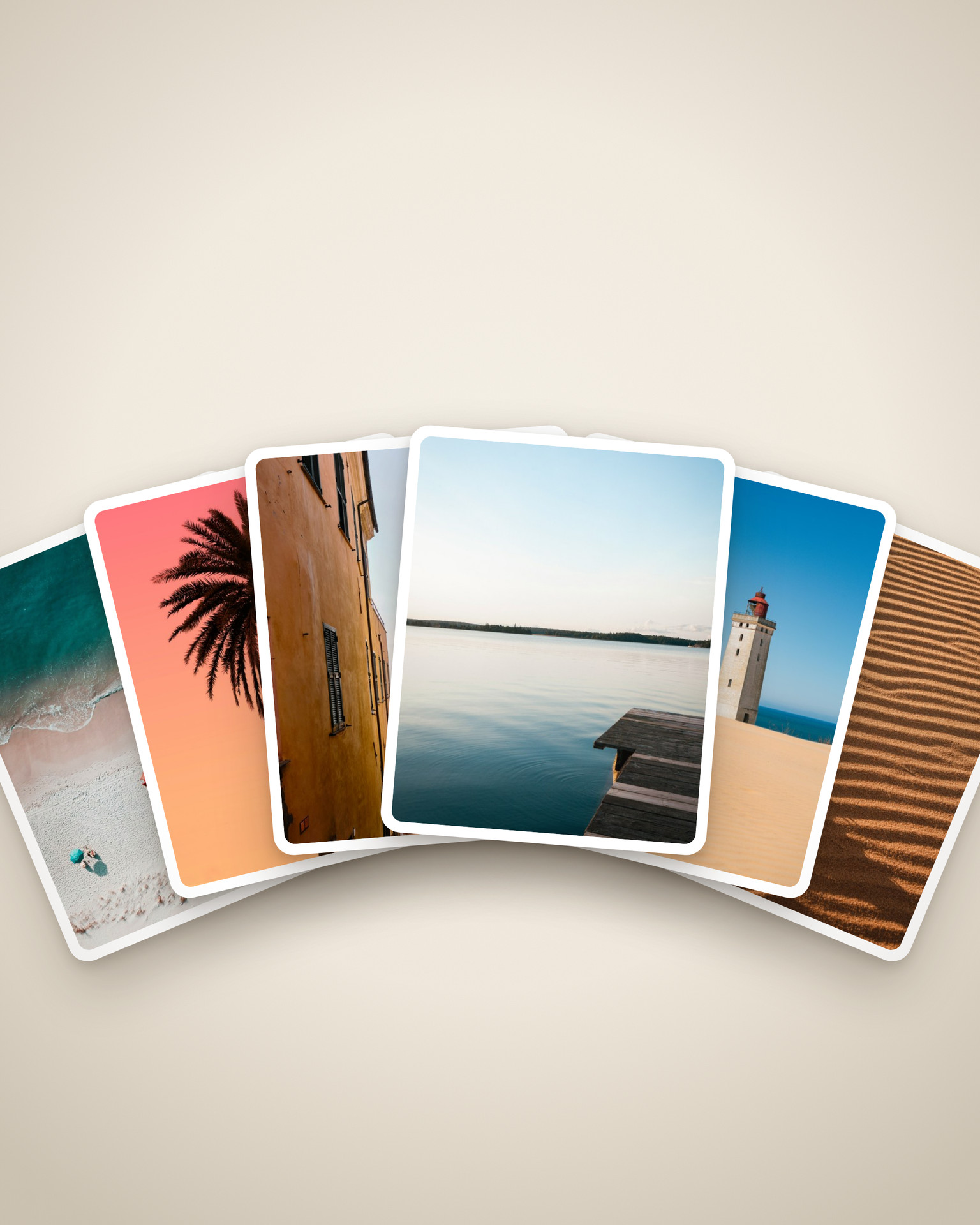
I built the cover for our last AI Power Users meetup exactly this way, in an afternoon, with no designer. The look is layered paper-cut illustration, the kind that feels handmade and expensive, and it is one of the easiest premium styles to get right with AI once you know what to ask for. The work is two steps: generate a still with GPT Image 2.0, then bring it to life with Seedance. Both run through the Higgsfield connector, so you can do the whole thing from Claude or ChatGPT. Here is how.
1. Lock the style before you generate anything
The difference between a paper-cut image that looks crafted and one that looks like flat clip-art is the words you feed the model. There is a small set of phrases that do the heavy lifting, and you repeat them every single time.
The DNA of the look: stacked cut-paper layers, each one casting a soft drop shadow onto the one below so you get real depth. A fine speckled matte paper grain on every layer. Clean knife-cut edges, smooth curves. Flat solid colour, no gradients. A bold flat-coloured background.
Weak: "make a paper craft illustration of a lightning bolt"
Strong: "a lightning bolt in a clean, modern layered paper-cut style, cut from coral paper raised on 3 to 4 stacked layers casting soft drop shadows, fine speckled matte paper grain, clean knife-cut edges, flat colour, no gradients"
If your tool lets you attach a reference image, feed it one or two examples of the exact look you want. Both GPT Image 2.0 and Seedance take references, and a reference does more for consistency than any sentence.
2. Generate the still with GPT Image 2.0
GPT Image 2.0 is the strongest at this because it actually renders the layers and the grain, and it follows a long, specific brief. You reach it through the Higgsfield connector, so you can run it straight from Claude or ChatGPT without leaving the chat. Describe the scene plainly, name your palette in hex, then bolt on the style block from section 1.
Three things to put in every prompt:
- Name the palette. Pick four or five flat colours and give the hex codes. A defined palette is what makes a set of images feel like one brand instead of five random pictures.
- Leave calm space if text is coming. If a headline goes on later, tell the model to keep the top third near-empty paper. It will compose around the gap.
- Forbid text outright. Add "no text, no letters, no words, no numbers" at the end. Image models scribble fake gibberish letters when left to their own devices, and you do not want that baked in.
To build a matched SET, generate the first image, then feed that result back as the reference for the next one. Paper weight, grain, light, and palette stay consistent across the whole series.
3. Keep the text OFF the image, add it after
This is the rule people skip, and it is the one that separates a clean asset from an amateur one. Generators cannot spell. They produce convincing-looking words that are actually nonsense, and once it is rendered into the artwork you cannot fix it.
So generate the artwork text-free, then add your headline, wordmark, and any data as a separate layer on top, in a tool that does type properly: Canva, Figma, Keynote, or your own template. The image model owns the picture. You own the words. Your type stays crisp and on-brand, and you can reuse the same artwork with different copy.
4. Animate it with Seedance, layer by layer, camera locked
Take the finished still into Seedance (image-to-video, in the Higgsfield connector) and let the scene build itself from nothing. Treat every element as its own sheet of paper, sort them by depth, and bring them in on a deliberate back-to-front order: sky and background first, then the mid-ground, then the foreground, and the hero element resolving last as the payoff. Grouping the moves into four to six clear beats keeps it readable instead of a dozen things twitching at once.
The one rule you never break: LOCK the camera for the whole clip, no zoom, no push-in, no pan, and no zoom at the end. The paper does all the work, the camera never moves. Any camera move, even a slow push-in, flattens the layered look into a flat photo and kills the effect.
Give each layer real paper physics: a little weight, a soft overshoot and settle, the faint shadow of a sheet landing on the one below. Once everything has assembled, let it settle and only breathe, small looping motion, gentle layered parallax. A build that resolves into a living diorama looks like it took a week. A camera that pans or zooms looks like a cheap slideshow.
Watch for this: image-to-video models love to sneak in their own slow zoom or drift, and on paper craft it always looks cheap. Say "locked camera, no zoom, no push-in" explicitly so it does not. Because Seedance runs from your finished still, expect the assembly to lean more toward a layered reveal than a perfect from-blank build, so run it a couple of times and keep the cleanest one.
5. Get the format right for the feed
Seedance has no native square or 4:5 output. It tends to land on 3:4, so you generate, then crop. Crop the HEIGHT down to 4:5 and never hardcode the width, or you will squash the scene. 4:5 (1080 x 1350) is the ratio that takes up the most room in the Instagram and LinkedIn feed, so it is worth the extra step.
One more: keep the clip short and loop it. About five seconds is the sweet spot, long enough for the scene to build and settle, short enough to loop cleanly and hold attention. Only stretch to ten if the scene is genuinely dense and the build feels rushed at five.
6. Draft both prompts with AI
You do not have to write the style block from scratch each time. Hand a model your scene idea and your palette and let it assemble the full GPT Image 2.0 prompt and the matching Seedance animation prompt to these rules: layered paper-cut DNA, named palette, text forbidden, layer-by-layer build, camera locked.
The exact two prompts I use, one for the still and one for the animation, are in the unlock below.
7. Before you post
- Are the paper edges still crisp, or did the animation blur them? If blurred, the motion was too big. Run it again with less.
- Did the camera actually stay locked? Watch the corners. If they drift, it added a push-in.
- Is any text added separately and legible, not baked into the artwork?
- Does it loop cleanly, or does it jump at the seam?
Generate the picture, add the words yourself, and let the paper build itself while the camera stays locked. That is the whole trick to a paper-cut clip that looks like it took a week and took an afternoon.